
File Converter Tools Explained
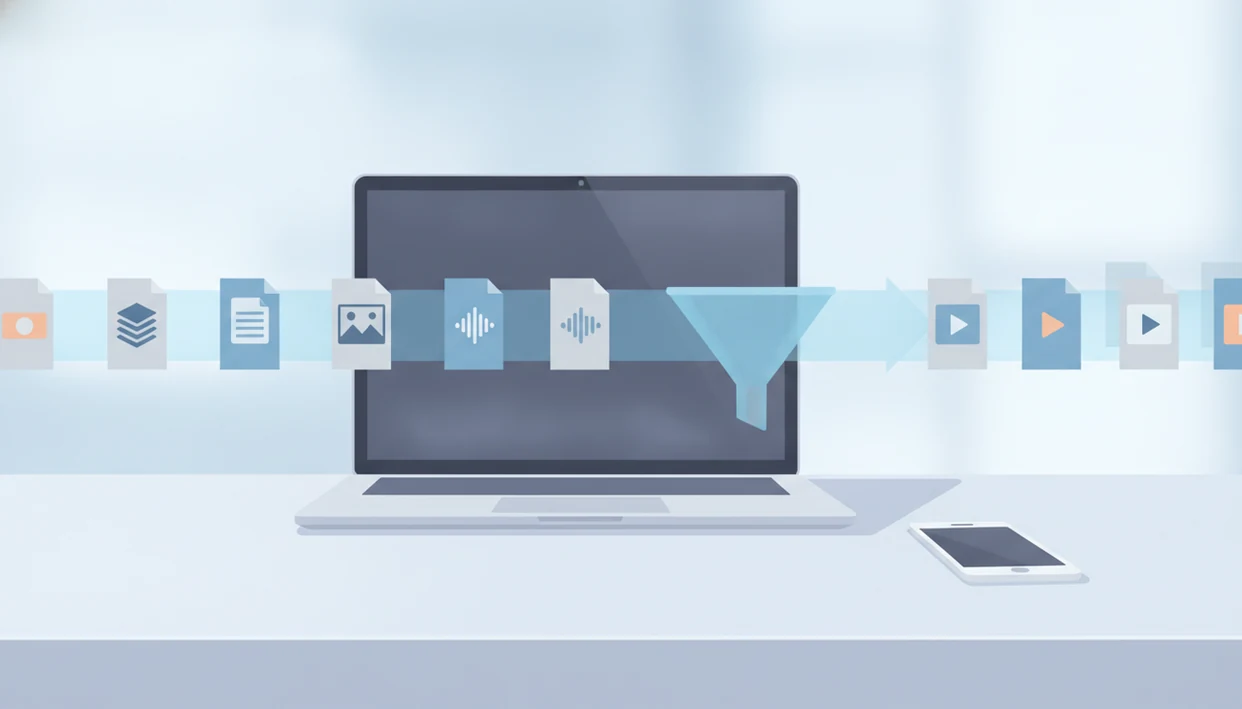
The phrase file converter tools refers to software, apps, or web services that change a file from one format to another, such as PDF to Word, MOV to MP4, WAV to MP3, or HEIC to JPEG. They are useful when a device, website, app, school portal, or client only accepts certain file types, but they can also affect privacy, quality, and layout.
> Definition: A file converter tool is software, a mobile app, or a web service that reads one file format and exports the same content into a different format that another app or device can use.
TL;DR
- Use online converters for quick, low-risk files, but use offline or trusted local tools for sensitive documents, private photos, or work files.
- Conversion can change quality, layout, metadata, file size, and compatibility; it does not magically improve the original file.
- Check file-size limits, supported formats, batch features, privacy policies, and whether the tool works well on your phone before choosing one.
File Converter Tools Definition for Everyday Users
A file converter tool changes a file from one format to another so it opens, uploads, shares, or plays in the place you need it. Common examples include PDF to DOCX, WAV to MP3, MOV to MP4, and HEIC to JPEG.
The trigger is usually ordinary: a file will not open, a website rejects the upload, a phone saves photos in a format another device cannot read, or a video is too large to send. We have seen the same problem surface at the boring moment, not the dramatic one, like a school portal refusing a homework file five minutes before submission.
These tools can be web-based, mobile apps, desktop programs, or built into operating systems. Lunchbox Guitars explains digital tools, mobile apps, and software buying decisions in plain language, and converters fit that brief because the receipt tells a different story when “free” turns into file caps, watermarks, or a subscription floor.
File Converter Tools at a Glance
File converter tools are easiest to choose when you start with the file type, not the brand name. Most everyday decisions come down to privacy, file size, and whether the conversion is a one-time fix or a repeat workflow.
| Use case | Best tool type | Watch-out | Example format changes |
|---|---|---|---|
| Documents | Desktop app or trusted web converter | Layout, fonts, tables, comments | PDF to DOCX, DOCX to PDF |
| Images | Built-in phone tool or image converter | Compression, metadata loss | HEIC to JPEG, PNG to WebP |
| Audio | Desktop or mobile media converter | Bitrate and sample rate changes | WAV to MP3, FLAC to AAC |
| Video | Desktop software for large files | Slow uploads, quality loss | MOV to MP4, AVI to MP4 |
| Archives | Desktop archive utility | Unsupported compression types | ZIP to 7Z, RAR to ZIP |
Pew reported that U.S. adults spent 8 hours and 5 minutes per day with digital media in 2021 (day with digital media in 2021). That helps explain why ordinary file management now crosses phones, laptops, cloud drives, and upload forms. For broader buying criteria, our digital tools guide uses the same compare, verify, reproduce, flag method.
How File Converter Tools Work Behind the Scenes
File converter tools usually follow five steps: upload or open the file, decode the source format, map the content into a target format, encode the new version, then download or save it. In plain terms, the tool reads one file “language” and writes another.
Documents are messy because formats store layout differently. A PDF may preserve page appearance, while a DOCX file expects editable text, fonts, tables, margins, and image anchors. That is why a converted résumé can shift by half a line or push a table onto page two.
Media conversion adds another layer. Video and audio tools may change codecs, containers, resolution, bitrate, sample rate, or compression settings. The container is the wrapper, like MP4 or MOV. The codec is the method used to squeeze and play the media inside it.
Lossy conversion discards detail to shrink the file. Lossless conversion tries to preserve it. Once detail is discarded, converting back does not rebuild the original. Gone is gone.
Five File Converter Facts That Prevent Bad Results
These five facts prevent most bad file converter outcomes. Check them before you convert anything important, especially if the file is private, large, or hard to recreate.
- No single converter supports every file type or conversion path. A tool may accept HEIC to JPEG but fail on RAW, SVG, or an app-specific project file.
- Online converters are convenient but may be a poor fit for sensitive files. Tax forms, client contracts, medical documents, and private photos deserve extra caution.
- Lossy formats can permanently reduce quality. JPEG, MP3, and many video exports trade detail for smaller size.
- Batch conversion, compression, and mobile share-sheet support can save time. The difference is obvious when a folder has 47 vacation clips instead of one file.
- Free tools often limit file size, daily conversions, speed, or formats. The blurred price under the free trial button matters when you are converting more than a test file.
For private or large files, local conversion is often safer than browser upload because the file does not need to leave your device.
Common File Converter Tool Examples by File Type
File converter tools usually fall into a few practical categories. The category matters because each file type carries different risks for quality, compatibility, and lost details.
- Document converters: PDF to Word, Word to PDF, and PowerPoint to PDF help with school uploads, forms, and editable drafts. Complex layouts still need checking.
- Image converters: HEIC to JPEG and PNG to WebP solve phone photo compatibility, website uploads, and smaller image sizes for sharing.
- Audio converters: WAV to MP3 or FLAC to AAC can shrink large recordings for email attachments or older devices.
- Video converters: MOV to MP4 is common for social sharing, phone clips, and editing apps that reject certain containers.
- Archive converters: ZIP to 7Z or RAR to ZIP helps when an older device or school computer cannot open the original archive.
Pew reported in 2022 that 95% of U.S. teens used YouTube (Pew Research Center), and Cisco projected that video would make up 82% of global IP traffic by 2022 (Cisco). Those figures do not make every user a video editor, but they explain why compression and format support show up in normal app decisions. Consumer-friendly reviews and guides about digital tools, mobile apps, web software, and buying decisions for everyday users deliver checks on pricing, permissions, limits, and real workflows, not vague promises about productivity.
Online File Converter Tools vs Desktop Converter Software
Online converters are usually better for quick, non-sensitive files. Desktop converter software is usually better for private files, large media, batch jobs, and work you expect to repeat.
For example, CloudConvert and Zamzar fit the quick web-converter pattern, HandBrake is a common desktop choice for video conversion, and Adobe Acrobat is often used for PDF workflows. The right choice depends less on popularity than on file sensitivity, output quality, supported formats, and repeat use.
| Tool type | Installation | Privacy | Speed and limits | Batch conversion | Offline access | Ideal use case |
|---|---|---|---|---|---|---|
| Online converter | None beyond browser | Uploads file to a service | Depends on internet, server load, and caps | Often limited on free plans | No | One quick, low-risk file |
| Mobile converter app | App install required | Depends on permissions and cloud access | Limited by storage, battery, and upload speed | Varies widely | Sometimes | Phone photos, clips, and downloads |
| Desktop software | Installed locally | Can keep files on device | Better for large files | Usually stronger | Yes | Private documents or large video |
| Built-in OS tools | Already included | Usually local | Fast for supported formats | Limited | Yes | Simple image, PDF, or archive tasks |
A 2023 academic privacy survey found that over 80% of respondents were concerned about how online services handle personal data. That concern is directly relevant when a converter asks for uploads, account creation, or broad storage access. The trade-off mirrors the broader cloud vs local software debate: convenience on one side, control on the other.
When File Converter Tools Help and When They Do Not
When should you use file converter tools? Use them when the problem is format compatibility, upload requirements, file size, or access on another device.
Good use cases include meeting a school portal’s upload rule, opening a file on an older laptop, shrinking a video for sharing, preparing class files, or making a document work better with a screen reader. Accessibility matters here. A cleaner DOCX or tagged PDF can be easier to navigate than a flat image scan, though the result still needs checking.
Poor use cases are different. A converter usually cannot restore lost photo detail, repair a corrupted file, bypass DRM, or turn an unsupported proprietary project file into a fully editable version. If the source app never exposed an export path, conversion may be the wrong tool.
According to EDUCAUSE, 55% of college students reported using cloud-based file storage or sharing services for coursework (Educause). That lines up with the everyday friction students hit when a portal wants PDF, not Pages, or MP4, not MOV. For students, converting to the required upload format is often easier than troubleshooting the receiving system because the portal rule usually will not change.
Mobile File Converter Tools for Phones and Cloud Files
Mobile file converter tools matter because many files now start on a phone, not a desktop. People convert from the gallery, Files app, Google Drive, iCloud Drive, Dropbox, email attachments, and messaging apps.
The friction is specific. HEIC photos fail on older devices. Large videos stall on public Wi-Fi. A phone runs low on storage during export. Then a permissions prompt asks for the whole photo library when you only need one screenshot. That is the moment to slow down.
Use mobile converters this way:
- Choose the exact source file from Photos, Files, Drive, iCloud, Dropbox, email, or a message thread.
- Check the output format required by the app, school portal, website, or client before converting.
- Review permissions before granting access to contacts, full photo libraries, or cloud storage.
- Compress or batch-convert only when you have many photos, clips, or attachments.
- Open the exported file in the receiving app before deleting the original.
Batch conversion and compression help families, students, creators, and casual users with hundreds of clips. The same permission checks apply across mobile apps guide topics, especially when a simple converter asks for more access than the task requires.
Limitations
File converter tools are useful, but they are not repair tools, privacy guarantees, or quality upgrades. The safest habit is to keep the original file until you have opened and checked the converted copy.
- Complex PDF to Word or PowerPoint conversions can break layouts, fonts, spacing, tables, and image placement.
- Lossy conversions can permanently reduce image, audio, or video quality.
- DRM-protected media, proprietary formats, and app-specific files may not be legally or technically convertible.
- Online converters depend on internet speed, upload limits, server load, and provider uptime.
- Free tools may add ads, watermarks, queues, daily limits, file-size caps, or fewer output formats.
- Some tools may delete metadata such as captions, camera data, subtitles, layers, comments, or accessibility tags.
- Sensitive files should not be uploaded unless the service has a trustworthy privacy policy and retention policy.
We have also opened a CSV export and found only timestamps, not the notes a user expected to keep. Small print first. Conversion is an export decision, not just a button tap. If pricing is the hidden problem, subscription fatigue software explains why “free converter” can become another monthly charge.
FAQ
Are file converters safe?
File converters can be safe, but it depends on the tool, file sensitivity, ads, privacy policy, and whether conversion happens online or locally. Use local or trusted tools for private documents, client files, and personal photos.
Do converters reduce quality?
Lossy media conversions can reduce quality permanently, especially with JPEG, MP3, and compressed video. Lossless formats and some document conversions preserve more detail, but results still vary by tool.
Can converters open any file?
No converter opens every file because formats, codecs, DRM, and proprietary app systems create limits. Always check supported input and output formats before relying on one tool.
What is an online converter?
An online converter is a browser-based service that uploads your file to a server and returns a converted download. It is convenient for quick files but less suitable for sensitive material.
What is a desktop converter?
A desktop converter is installed software that processes files on your computer. It may be better for large files, private files, offline work, and repeated batch conversion.
Can I convert files on iPhone?
Yes, iPhone users can convert some files through Photos, Files, share sheets, cloud apps, and third-party converter apps. Review permissions before giving an app access to your whole library or cloud drive.
Why did my layout change after conversion?
Layouts change because document formats store fonts, spacing, tables, images, and visual elements differently. PDF to Word conversion is especially prone to shifted spacing and broken tables.
Are free file converters good enough?
Free file converters are often good enough for occasional, low-risk files. Paid tools may be worth it for larger limits, batch work, better support, fewer ads, or stronger privacy controls.