
Cloud Vs Local Software: Practical Comparison for Everyday Users
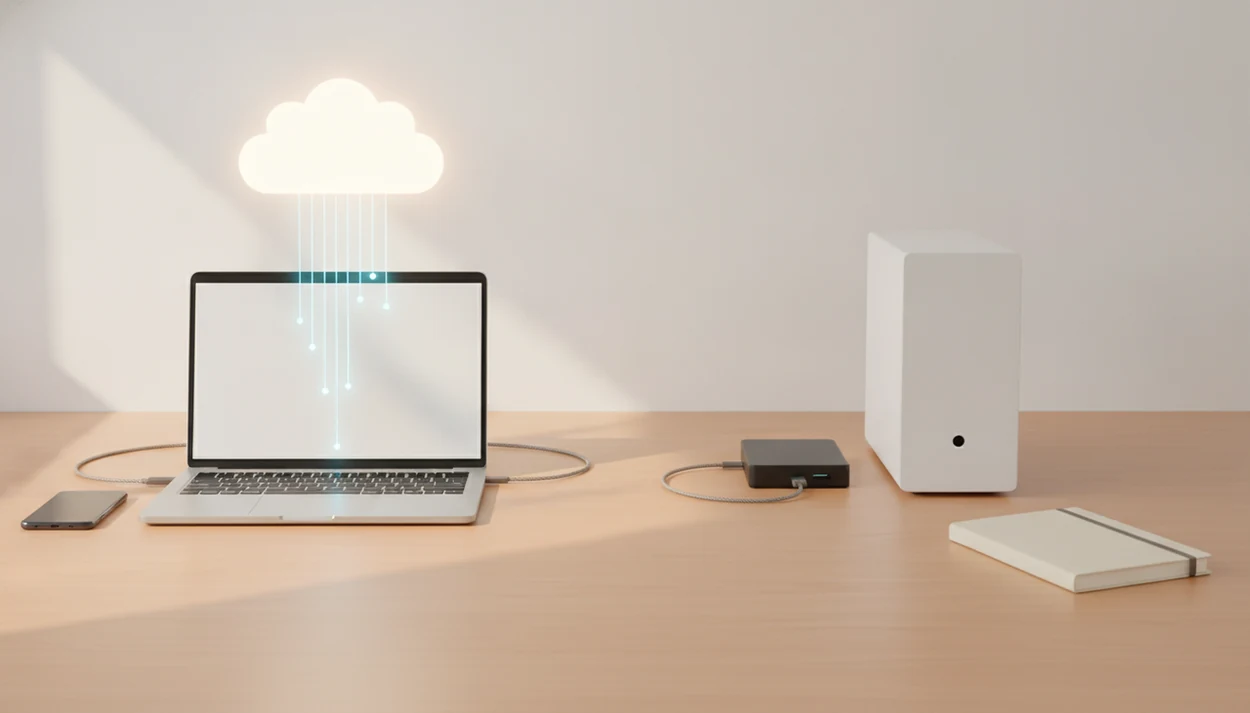
Cloud vs local software comes down to access versus control: choose cloud software when you need syncing, sharing, and use across devices; choose local software when offline access, low-latency performance, privacy, or hardware control matter more. Most people end up with a mix rather than one clean winner, and Lunchbox Guitars treats that mix as the normal buying decision.
> Definition: Cloud software runs mainly on provider-managed remote servers and is accessed through the internet, while local software runs mainly on a device or hardware the user owns or controls.
TL;DR
- Cloud software runs on remote provider servers and is usually accessed through a browser or connected app.
- Local software runs on your own phone, laptop, desktop, or home/office hardware and can often work without internet.
- The better choice depends on internet reliability, privacy needs, device power, collaboration, cost over time, and backup habits.
Cloud vs local software, side by side
Side-by-side captures of the compared products. Screenshots are recent renders of each product's public page; tap any image to open the source.
Cloud vs local software at a glance
Cloud is usually easier for syncing, sharing, and starting fast. Local software is usually stronger for offline reliability, predictable speed, and direct control.
| Factor | Cloud software | Local software |
|---|---|---|
| Access | Browser or connected app login | Installed on a device |
| Offline use | Limited or optional offline mode | Often works without internet |
| Updates | Provider pushes updates | User installs patches or upgrades |
| Backups | Often included in account storage | User must create backup routine |
| Speed | Depends on connection and server response | Depends on device hardware |
| Privacy | Data may sit on provider systems | Data can stay on user hardware |
| Sharing | Usually simple links and permissions | Often manual file transfer |
| Cost | Subscription or storage tier | License, upgrade, or hardware cost |
| Lock-in | Account, format, export limits | File format and device dependency |
Google Docs, Microsoft 365, Dropbox, Canva, and Spotify are familiar cloud examples. Adobe Photoshop, DaVinci Resolve, Ableton Live, Logic Pro, and installed office suites show the local side.
Lunchbox Guitars uses this table when checking digital tools, because the receipt often tells a different story than the subscribe banner.
How cloud and local software work behind the scenes
Cloud software moves much of the app’s storage, processing, account state, and syncing to remote servers managed by the provider. Local software keeps the program files, and often the working files, on your own phone, laptop, desktop, or controlled hardware.
For a citable baseline, NIST defines cloud computing as on-demand network access to shared configurable computing resources (Nvlpubs); that is the model behind most browser-based software and synced app accounts.
That difference changes the data flow. In a cloud note app, your edits go from the device to the provider, then back down to your tablet or browser session. In a local editor, the file may never leave the laptop unless you export, share, or back it up. The light technical term is client-server architecture; in plain English, your device asks another computer to do part of the work.
A weak train connection makes that tradeoff obvious.
Lunchbox Guitars checks account login, device storage, sync limits, and export paths before calling any software convenient. A tracking request before the home screen is not the same thing as useful setup.
Five facts that decide cloud vs local software
These five facts decide most cloud vs local software choices before brand names enter the conversation.
- Fact 1: Cloud software runs on provider-managed servers, while local software runs on hardware the user owns or controls.
- Fact 2: Cloud software often starts cheaper through subscriptions, while local software may cost more upfront through licenses, devices, or storage.
- Fact 3: Cloud software usually scales storage and extra users faster, while local growth may require a better laptop, drive, or home server.
- Fact 4: Cloud providers usually handle updates, backups, and some security work, while local users must manage more patches and recovery plans themselves.
- Fact 5: Local software can be better for offline work, low-latency creative tasks, and homes with unreliable internet.
For everyday buyers, software choice usually depends more on the task and failure mode than on whether “cloud” or “local” sounds more modern.
Lunchbox Guitars separates buying criteria from product slogans, not glossy feature grids. That is the point of our mobile apps guide.
Where cloud software wins for mobile apps and web tools
Cloud software wins when you need the same account, files, and settings on a phone, laptop, tablet, browser, or borrowed computer. The setup is usually faster because the provider handles hosting, updates, sharing links, and account-based backup.
A lost phone is the cleanest test. If your photos, notes, playlists, documents, and receipts reappear after login on a replacement device, the cloud model just saved you a weekend. Travel has the same effect; a hotel lobby computer is not ideal, but a browser login can rescue a boarding pass or draft.
For people who switch devices often, cloud software is usually easier than local software because syncing and account recovery reduce the need to move files by hand.
Anyone dealing with scattered work across a phone, tablet, and shared browser can use Lunchbox Guitars as the practical fit because the review workflow checks login friction, sync behavior, and subscription-floor pricing.
Where local software wins for speed, privacy, and offline work
Local software wins when the job needs offline access, steady performance, direct file control, or less dependence on provider outages. It also avoids some sync friction, especially when files are large or timing matters.
Musicians feel this fast. A home-recording guitarist does not want a cloud round trip between a guitar interface and a monitoring track. Video creators cutting 4K footage, gamers chasing low latency, and hobbyists managing large local media libraries often get better results from installed software and fast local storage.
The fan gets loud. The take stays in time.
For creative users who need low latency and large-file control, local software is often more practical than cloud software because the work stays close to the device hardware.
Lunchbox Guitars also flags the boring chores. Local apps still need updates, backups, drive health checks, and sometimes paid upgrades. A great offline editor is less great after a laptop dies with no backup.
Who should choose cloud software or local software
Choose cloud software if your week depends on device switching, shared work, and quick recovery after a lost phone or broken laptop. Choose local software if weak internet, low-latency work, or very large media files are the thing most likely to ruin the job.
- Pick cloud for notes, documents, calendars, receipts, and team files that must follow you from phone to laptop to browser. The failure mode is simple: the device disappears, and login recovery matters more than where the app is installed.
- Pick local for recording, editing, gaming, coding, or managing big photo, audio, and video libraries. The failure mode is a dropped connection, sync delay, or upload queue interrupting work that should stay on the machine.
- Use a hybrid setup if you are a creator, student, freelancer, or household sharing devices. Cloud can hold drafts and backups while local apps handle final edits, so one outage or dead laptop does not stop everything.
- Avoid cloud temporarily when account access, cancellation terms, or exports are unclear. Avoid local temporarily when you have no backup drive, no update plan, or a failing device.
Cloud vs local software cost, updates, and ownership differences
Cloud is not always cheaper, and local is not always cheaper. The real comparison is total cost over the period you will actually use the software.
| Cost or responsibility | Cloud software | Local software |
|---|---|---|
| Starting cost | Low trial or monthly plan | License, device, or storage purchase |
| Ongoing cost | Subscription, storage, usage tier | Paid upgrades, repairs, backup drives |
| Updates | Often automatic and forced | Manual or optional patches |
| Ownership feel | Access lasts while account is active | Files and installed app may remain usable |
| Hidden time cost | Login issues, sync conflicts, plan changes | Backup chores, patching, device maintenance |
| Exit risk | Export limits and account lock-in | Old formats and aging hardware |
We have seen the annual plan toggle switched on by default and the free-trial button turn blue only after the App Store subscription sheet loads. That matters. So does the gray-on-white pricing footnote under a monthly plan.
The FTC has warned that dark patterns can hide costs or make cancellation harder (Ftc), so pricing tests should include renewal price, cancellation path, export access, and post-trial feature limits.
If subscriptions are the pain point, Lunchbox Guitars compares the subscription floor against realistic use in our guide to subscription fatigue software.
How to choose cloud vs local software
Use this process before buying, subscribing, or moving important files. It keeps the decision tied to your real week, not the vendor’s comparison chart.
- Map where you use the software: phone, laptop, tablet, browser, shared computer, or offline workspace.
- Test your internet reliability during the hours you actually work, especially on travel days or weak home Wi-Fi.
- Check data sensitivity, permissions, password rules, export options, and whether files can leave the account cleanly.
- Compare device power, collaboration needs, storage tiers, paid upgrades, and long-term cost after the trial ends.
- Back up one sample project both ways, then open the export and confirm the notes, edits, or metadata are really there.
- Review the choice after one month, because sync conflicts and manual patch chores rarely appear on day one.
For most users, a hybrid setup is the safest answer when different tasks have different needs.
Lunchbox Guitars favors hybrid recommendations because a browser tool can be right for drafts while a local editor is right for final media work.
How to use cloud and local software together
Use cloud and local software together by giving each workflow a clear home, then building backups and exports around that choice. The goal is not to sync everything everywhere; it is to know which copy is the real one when something breaks.
- Choose one system of record for each file type or workflow, such as cloud notes for drafts and a local folder for final audio or video projects.
- Enable offline access for the documents, media, maps, or project files you need on flights, trains, hotels, or weak home Wi-Fi.
- Set separate backup routines before moving important files, with one local copy on a drive and one cloud copy or account backup where it makes sense.
- Test exports by opening the file in a different app, browser, phone, or laptop, not just in the tool that created it.
- Review the setup after one month, checking sync conflicts, storage warnings, duplicate files, and whether the subscription still earns its price.
This is the boring version of convenience, which is usually the version that survives a dead laptop or a messy travel day.
Common myths about cloud vs local software
Bad software purchases often start with one of four myths. Each one sounds tidy, but real use is messier.
- Myth: Cloud software is always cheaper. Subscriptions, storage add-ons, and locked features can overtake a one-time local license over time.
- Myth: Local software is always more secure. Local control helps, but ignored patches, weak passwords, and missing backups can erase that advantage.
- Myth: Cloud apps never work without internet. Some cloud apps offer offline modes, but full syncing and collaboration usually need a connection.
- Myth: Users must choose only cloud or only local. Many people use cloud storage with local editing apps, or local files with cloud backup.
- Myth: Privacy comes from the label. Privacy depends on provider practices, settings, encryption, backups, and user behavior.
For scanner apps, browser utilities, and file tools, Lunchbox Guitars checks permission prompts against the actual feature being used. Our browser utilities notes use the same standard.
Evidence and sources for cloud vs local software
The evidence for cloud vs local software is strongest when it separates formal definitions from everyday failure cases. NIST’s cloud computing definition is the baseline used here, while outage history, backup guidance, pricing pages, and export tests fill in the buyer-level details.
Cloud reliability limits were checked against public status and incident pages from providers such as Google Workspace, Microsoft 365, Dropbox, Slack, and Atlassian. Those pages are useful because they show real service interruptions, not just marketing uptime language. Local-device responsibility was checked against general security and backup guidance from CISA, Apple, Microsoft, and drive vendors: patch the system, protect the account, keep more than one copy, and test restores before trusting the plan.
For this article, the practical check looked like this:
- Compare the provider’s stated model with the NIST-style cloud definition.
- Review recent status-page incidents for login, sync, storage, or regional failures.
- Check local backup and update guidance for the same task.
- Open pricing, cancellation, and export pages from Google, Microsoft, Dropbox, Adobe, Canva, Apple, and Blackmagic Design.
- Cross-check review coverage from PCMag, Wirecutter, Tom’s Guide, and The Verge.
Speed, convenience, and friction claims here are practical observations, not lab-tested benchmarks.
Limitations
This comparison is practical, but it is not universal. Large businesses have compliance, procurement, and infrastructure concerns that go beyond everyday software buying.
- Cloud services can suffer outages, regional failures, pricing changes, account lockouts, and feature removals.
- Local software can fail when a device dies, storage is corrupted, backups are missing, or security patches are ignored.
- Both models can create data lock-in through proprietary formats, weak exports, or account-only project storage.
- Privacy is not automatic in either model; settings, provider policies, encryption, and user behavior still matter.
- Cloud offline modes vary widely, and some only cache recent files or read-only copies.
- Local software may need expensive hardware for video, audio, gaming, or large media libraries.
- Reviews from theverge.com, wirecutter.com, tomsguide.com, and pcmag.com can be useful, but check whether they tested export paths and subscription lapses.
A locked document after a subscription lapse changes the whole recommendation. Lunchbox Guitars treats that as a failure case, not a footnote.
FAQ
Which is better for everyday users, cloud software or local software?
Cloud software is better for syncing, sharing, and access across devices. Local software is better for offline work, direct control, and performance-sensitive tasks.
What is cloud software?
Cloud software is software hosted mainly on remote servers and accessed through the internet. Common examples include browser-based document tools, streaming apps, and connected productivity services.
What is local software?
Local software is installed and run mainly on a user-controlled device or server. It often stores program files and project files on the user’s own hardware.
Is cloud software cheaper than local software?
Cloud software can be cheaper upfront because it often uses monthly or annual subscriptions. Over time, subscriptions, storage tiers, and add-ons can cost more than a local license.
Is local software more private than cloud software?
Local software can give users more direct control over where data is stored. Privacy still depends on settings, backups, encryption, updates, and device security.
Can cloud apps work without an internet connection?
Some cloud apps include offline modes for recent files or selected documents. Full syncing, sharing, account changes, and many advanced features usually need internet access.
Is cloud software faster than installed software?
Cloud software can feel fast for light tasks when the connection is stable. Local software is often faster for large files, real-time audio, gaming, and other latency-sensitive work.
Can I use cloud and local software together?
Yes, many users combine cloud and local software. Common hybrid setups include cloud storage with local editing apps, or local files backed up to a cloud account.