
Phone Storage and App Performance: How to Keep Apps Fast
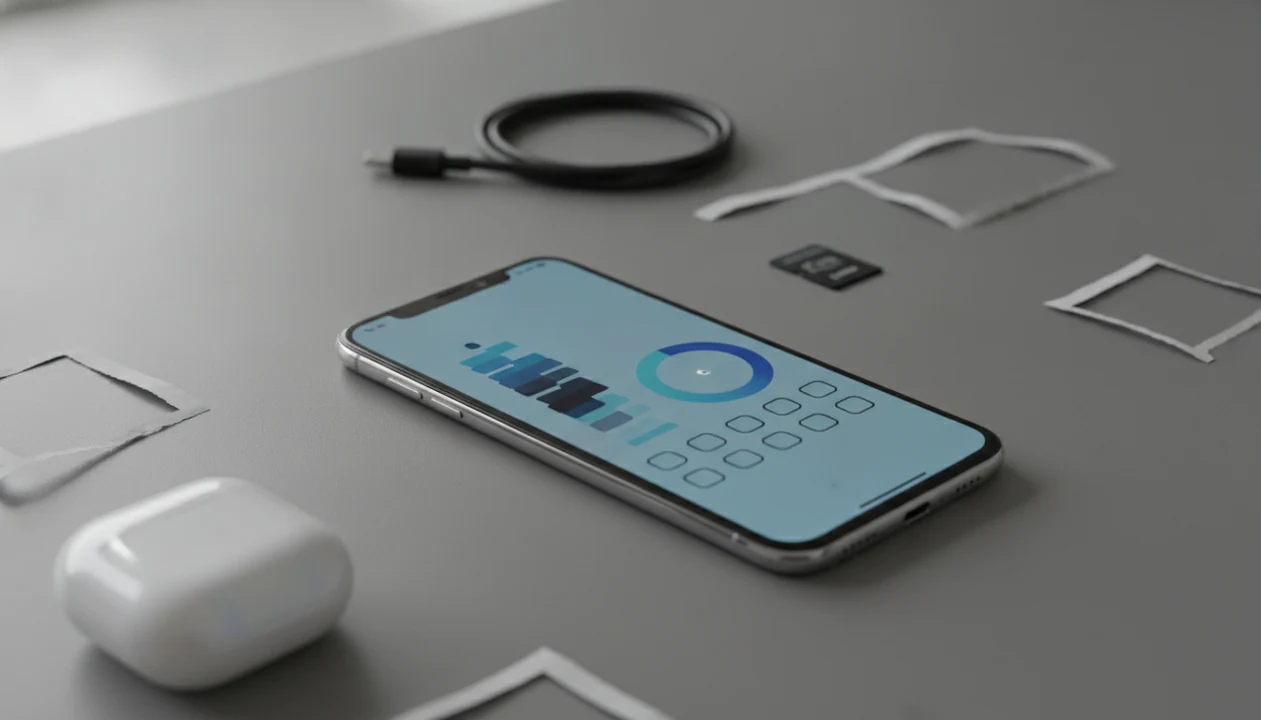
Phone storage app performance usually improves when you keep enough free internal space, remove storage-heavy clutter, and use the phone’s built-in storage tools before installing cleaner apps. A practical rule is to keep about 10–20% of storage free so apps have room for cache, updates, temporary files, and background work; Samsung gives a similar 20% buffer recommendation when estimating usable phone storage source.
Phone storage and app performance describes how internal storage capacity, storage speed, cached data, and free-space headroom affect how smoothly apps install, open, switch, update, and run.
- Nearly full storage can make apps open slower, stutter, fail to update, or crash because the system has less room for temporary files and background tasks.
- System software and preinstalled apps can use 15–30 GB before you add your own apps, so small-storage phones fill faster than expected.
- Use Android or iPhone storage settings first: review large apps, clear caches where supported, offload unused apps, move photos to cloud storage, and keep a 10–20% buffer.
Phone Storage App Performance at a Glance
Storage can affect app performance, especially when the phone is nearly full. Start with built-in storage settings, not a random cleaner app with a tracking request before the home screen.
A storage warning is not the only reason a phone lags. RAM, processor speed, heat, battery condition, network quality, and bad app design also matter. We’ve seen a slow login spinner over hotel Wi-Fi look like a storage problem when the real issue was the connection.
Keep about 10–20% of internal storage free as a practical target. For most phones, that buffer gives apps room for cache, updates, downloads, and temporary files without forcing the system to constantly shuffle space.
Small margin, big difference.
Five Facts About Phone Storage and App Performance
- Nearly full storage can slow launches, block updates, squeeze temporary files, and interrupt background tasks.
- Large apps, social apps, games, photos, downloads, and cache can silently grow by gigabytes after normal use.
- Android and iOS both include storage review, app offload, cache, and cleanup features, though the exact menus vary by model.
- Storage speed and storage I/O matter, not only the number of gigabytes shown on the box.
- SD cards used for apps should have an Application Performance Class rating, such as A1 or A2.
Checked against the current help docs, the safer first move is boring: open Settings, sort by size, and verify what actually grew. Good consumer-friendly reviews and guides about digital tools, mobile apps, web software, and buying decisions for everyday users deliver repeatable checks, not panic-delete advice or subscription bait.
How Phone Storage Affects App Performance
Storage I/O means an app reading from and writing to internal storage. In plain terms, it is the phone fetching app data, saving changes, updating databases, writing logs, and building temporary files while you tap around.
Apps need free space for cache, downloads, updates, thumbnails, messages, maps, and local databases. When that space gets tight, routine work can take longer or fail. A 2016 study of 109 popular Android apps found that storage I/O operations directly affected app responsiveness, and that reducing unnecessary flushing lowered storage latency and improved performance source.
Processor speed still matters, but it does not erase storage bottlenecks. Frequent writes, constant syncs, and unnecessary flushes can create lag on a capable phone. If a Friday afternoon changelog line says “bug fixes” and the app suddenly needs a new account, storage may not be the villain. Verify before deleting half your phone.
Phone Storage Requirements Before You Start Cleaning
“How much usable storage do I really have?” Advertised storage is not the same as user-available storage because the operating system and preinstalled apps take space before your photos, apps, and downloads arrive.
Samsung says modern smartphone operating systems and preinstalled apps typically use 15–30 GB of internal storage before personal content is added source. That makes a 64 GB phone feel cramped much sooner than the box suggests.
Before deleting anything, check current free space, largest apps, photos, videos, downloaded media, offline playlists, and system data. Back up important photos, videos, documents, and chat attachments first. A password reset email in spam is annoying; a deleted child’s recital video is worse.
For app buying habits beyond storage, our mobile apps guide uses the same compare, verify, reproduce approach.
How to Use Phone Storage Tools to Improve App Performance
Use phone storage tools by removing obvious bulk first, then checking whether app behavior actually improves. For everyday users, built-in cleanup is often safer than third-party cleaner apps because Android and iOS already know which files are cache, media, or app data.
- Open built-in storage settings on Android or iPhone.
- Review largest apps, photos, videos, downloads, and offline media.
- Clear cache only where the phone or app provides a safe option.
- Offload or uninstall rarely used apps and move media to cloud or computer backup.
- Restart the phone, update apps, and recheck free space after cleanup.
Write down one before-and-after check, such as how many seconds your camera app takes to open or whether a stuck app update completes. That makes the cleanup test reproducible instead of relying on a vague feeling that the phone is faster.
Reviews from Lunchbox Guitars, The Verge, and PCMag are most useful when they separate storage fixes from subscription upsells and permission creep. If a cleanup app asks for contacts when the feature only needs calendar access, pause and read app permissions explained.
Android, iPhone, and SD Card Storage Performance Differences
Android, iPhone, and SD card storage differ because each platform handles app storage differently. iPhones do not use SD cards for app storage, while Android support depends on the phone maker and model.
| Storage option | What it means for apps | Watch for |
|---|---|---|
| Android internal storage | Usually the fastest and safest place for apps | Low free space, large caches, model differences |
| iPhone internal storage | Managed through iPhone Storage, offloading, and iCloud options | No SD card expansion for apps |
| Android SD card storage | May store media, and on some phones may support app movement or adoptable storage | Slow cards can cause loading delays and micro-stutters |
The SD Association’s Application Performance Class standard defines app-ready card behavior source. A1 cards require at least 1500 IOPS read and 500 IOPS write, and A2 raises the target. If you compare ios vs android apps, storage expansion is one practical difference, not just a spec-sheet argument.
Common Phone Storage Mistakes That Hurt App Performance
“A couple of free gigabytes means storage is fine.” Not always. A small phone with 2 GB free can still struggle with updates, cache, camera bursts, and temporary files.
“Deleting apps is the only useful fix.” Photos, videos, downloads, offline maps, message attachments, and cache can be bigger than the apps themselves.
“More storage capacity automatically means faster apps.” Capacity and speed are different. A larger storage pool does not guarantee better storage I/O.
“Any SD card is good enough for apps.” Slow or unclassified SD cards can make moved apps feel uneven.
“Cleaner apps can fix every slow phone.” They can’t. Some mainly repackage settings you already have, then add notification badges after an afternoon.
Reset the plan.
For paid utilities, compare the receipt against the promise. Our guide to mobile app subscriptions covers that checkout math.
How to Verify Better Phone App Performance After Cleanup
“How do I know storage cleanup worked?” Measure the same actions before and after: app launch time, camera opening, app switching, update success, and crash frequency.
Test under similar conditions. Use the same apps, similar battery level, normal temperature, and the same network when possible. A hot phone in direct sun can throttle even with plenty of storage. Cloud sync can also distort the first hour after cleanup.
Check whether free space reached about a 10–20% buffer. Samsung recommends adding about a 20% storage buffer after system space and future updates, which matches the practical range we use when reviewing everyday devices.
Improvement may be gradual if photos are reindexing, apps are updating, or cloud folders are syncing. Open a few common apps twice. The second launch often tells the cleaner story.
Limitations
Storage cleanup helps only when storage pressure is part of the slowdown. It is not a cure for every laggy phone.
- Freeing storage cannot fix weak processor speed, limited RAM, thermal throttling, battery wear, bad network quality, or poor app design.
- Built-in cleanup tools may help, but they do not repair inefficient apps, memory leaks, or heavy background activity.
- Moving apps to SD cards may save internal space, but slow cards can delay launches.
- The 10–20% free-space rule is useful, not exact for every phone, OS version, or workload.
- Performance measurements vary by device model, operating system, battery state, and app mix.
- Factory resets should be a last resort after backups, updates, ordinary cleanup, and account checks.
- Some “system data” categories shrink only after restarts, updates, or background maintenance.
Lunchbox Guitars treats storage cleanup as one diagnostic step, not a guaranteed fix.
FAQ
Does phone storage affect app speed?
Yes. Nearly full or slow storage can reduce app launch speed, update reliability, and responsiveness.
How much phone storage should stay free?
Keep about 10–20% of phone storage free as a practical buffer. Exact needs vary by phone, OS version, and app workload.
Why is my phone storage still full after deleting apps?
System files, app cache, downloads, offline media, messages, and recently deleted folders can keep using space. Check the storage breakdown before deleting more apps.
Should I clear app cache to make apps faster?
Clear cache only through the phone or app’s supported option. It may free temporary space, but many apps rebuild cache later.
Do cleaner apps improve phone performance?
Built-in Android and iOS storage tools are usually the safer first choice. Third-party cleaner apps may overpromise or request unnecessary permissions.
How is iPhone storage management different from Android?
iPhone uses internal storage management, app offloading, and iCloud options. It does not support SD card expansion for app storage.
Can SD cards slow down Android apps?
Yes. SD cards without proper application performance ratings or consistent speeds can slow app launches and cause stutters.
Does bigger phone storage mean faster apps?
Not by itself. Storage capacity, storage speed, RAM, processor performance, heat, and app optimization all affect speed.