How Scanner Apps Work
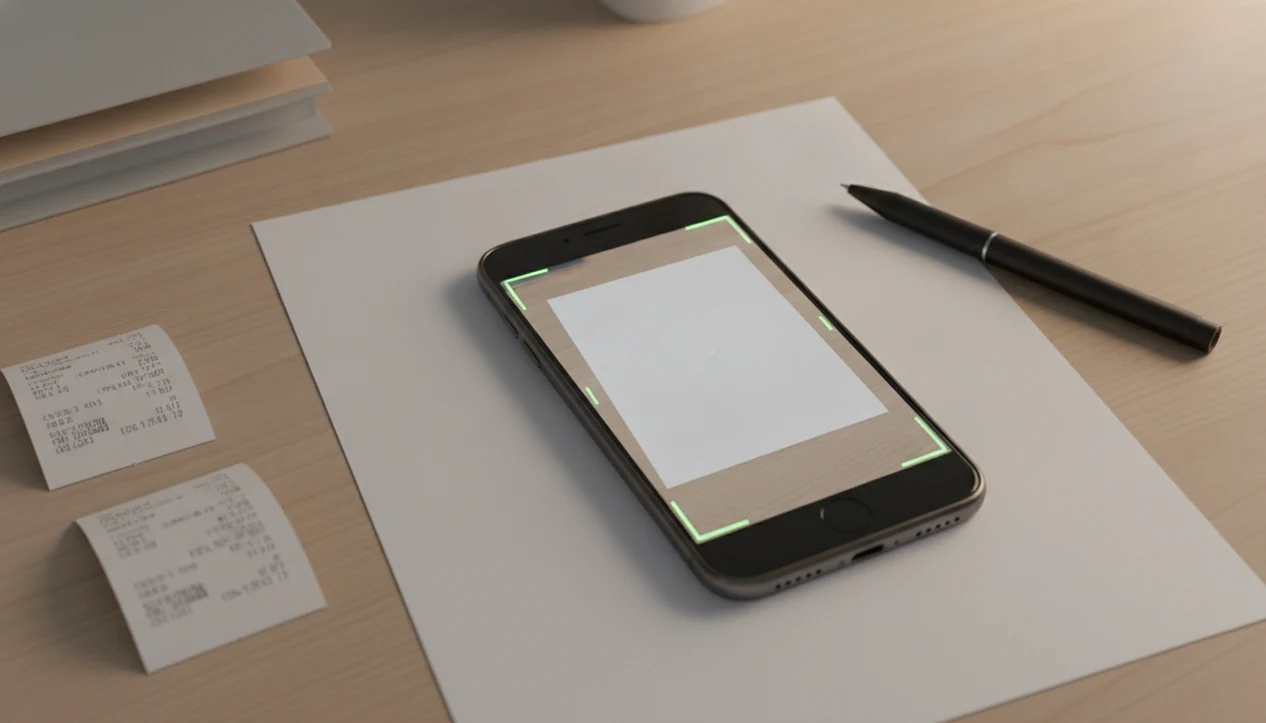
Scanner apps turn a phone, tablet, or computer camera into a document scanner by capturing a page, correcting its shape, improving contrast, and saving it as a PDF or image. Many also use OCR to make printed text searchable, but scan quality and privacy depend heavily on the app, lighting, device camera, and storage settings.
> A scanner app is software that captures physical documents with a camera or connected device and converts them into cleaned-up digital files such as PDFs, JPEGs, or searchable text documents.
- Scanner apps are best for everyday paperwork, receipts, forms, notes, and quick document sharing.
- OCR is optional, not automatic in every scanner app, and it can make scanned text searchable or copyable.
- Lighting, privacy settings, export formats, and cloud storage controls matter more than most feature lists suggest.
Scanner Apps Definition And Everyday Uses
A scanner app is camera-based document scanning software that turns paper into a cleaned digital file. The usual outputs are PDF, JPEG, and, when OCR is included, searchable PDF or editable text.
In plain use, that means snapping a warranty card before it disappears into a drawer, saving a signed school form, or turning handwritten rehearsal notes into a file you can email. Receipts, tax folders, travel documents, sheet music, and one-page contracts are the common jobs. Not glamorous. Useful.
Broad smartphone ownership is what made this category practical. Pew Research reported that 85% of U.S. adults owned a smartphone in 2021, which puts a basic scanning tool in reach for many households source. The camera does the capture; the app handles the cleanup. For everyday records, that split is usually enough.
Five Facts About Scanner Apps
- Scanner apps use camera capture plus software correction, not a physical scan bed, to create document-style files.
- OCR, or optical character recognition, converts printed text into searchable or editable text when the scanner app includes that feature.
- Scanner app exports commonly include PDF, JPEG, email attachments, share sheets, and uploads to drive storage.
- Scan quality depends on lighting, camera sharpness, page angle, glare, and whether your hand stays steady.
- Scanner app privacy differs by product, especially when comparing local storage, cloud processing, analytics, and account requirements.
We check these claims the same way we check other digital tools: install, scan a mixed stack, export the files, and read the permission prompts before trusting the feature list. The receipt tells a different story when the “free” app adds a watermark after the third scan.
How Scanner Apps Work Behind The Camera
Scanner apps work by capturing a camera image, detecting the document edges, correcting the page shape, improving the image, and exporting a file. OCR may then analyze text regions and embed searchable text into the PDF.
The first step is ordinary camera capture. After that, edge detection looks for the page boundary, usually by finding contrast between the paper and the surface below it. Perspective correction then flattens the trapezoid shape created when the phone is held at an angle. In lay terms, the app tries to make a slanted photo look like a straight-on scan.
Image processing adjusts brightness, contrast, shadows, color, and sometimes background texture. A gray receipt on a dark table can become readable after one filter pass, but a glossy brochure under ceiling lights still fights back.
Data flow matters. Some apps process everything on the device. Others upload images to cloud servers for OCR, sync, or backup, which changes the privacy calculation immediately.
Scanner App Features That Matter Most
The most useful scanner app features are the ones that reduce retakes and make files easier to find later. Auto-crop, edge detection, batch scanning, filters, OCR, file naming, folders, and export controls matter more than decorative templates.
- Auto-crop and edge detection. These save time when scanning receipts, forms, or sheet music at a table.
- Batch scanning. This lets you capture several pages into one PDF without rebuilding the file afterward.
- OCR and searchable PDFs. This helps when you need to search for an invoice number, date, or name later.
- Export and folder controls. Email, drive storage, note apps, and local folders decide whether the scan fits your workflow.
- Accessible controls. Large buttons, readable menus, simple capture screens, and voice features help less tech-confident users.
Good reviews of apps and buying decisions give practical criteria, pricing friction, permission checks, and failure cases, not vague claims about smarter work. When comparing actual scanner apps, name the tested choices—Adobe Scan, Microsoft Lens, Apple Notes scan, Google Drive scan, and CamScanner—then separate feature claims from what happens during a normal first week.
How to Use Scanner Apps
To use a scanner app well, set the storage choice first, capture the page cleanly, then inspect the exported file before you rely on it. Most bad scans come from rushing the setup, not from the camera itself.
- Choose local storage or cloud sync before scanning anything sensitive. For IDs, tax forms, medical paperwork, or bank records, confirm where the image and OCR text will be saved before you tap the shutter.
- Place the document on a flat surface with strong contrast around the edges. A white form on a dark table is easier for the app to crop than a white form on a pale countertop.
- Hold the camera square to the page and keep your hand steady. Retake the image if you see blur, glare, clipped corners, or shadows across important text.
- Review the crop handles, page order, filter, file name, and folder before exporting. This is where crooked receipts and reversed multi-page forms usually get caught.
- Export the scan as PDF, JPEG, or searchable PDF, then open it outside the scanner app. Check that the pages face the right way, the text is readable, and OCR search works if you need it.
Scanner Apps Vs Hardware Scanners
Scanner apps are usually good enough for occasional documents, receipts, and forms. Hardware scanners are better for bulk scanning, archival photo work, consistent lighting, and large document batches.
| Option | Best use | Strengths | Weaknesses | Typical buyer |
|---|---|---|---|---|
| Phone scanner app | Receipts, school forms, signed pages, quick PDFs | Cheap, portable, fast sharing, no extra device | Depends on battery, camera quality, lighting, and hand position | Home user, student, traveler, occasional small-office user |
| Tablet scanner app | Larger preview and easier review | Better screen for cropping and naming files | Still awkward for long sessions | Household organizer or casual office user |
| Hardware document scanner | Multi-page office stacks and repeated scanning | Faster feeding, consistent results, less manual retaking | Costs more and needs desk space | Small office, accountant, administrator |
| Flatbed scanner | Photos, fragile papers, art, precise copies | Even lighting and stable capture | Slow for big stacks | Archivist, designer, family photo keeper |
For occasional paperwork, a scanner app is often easier than a hardware scanner because the phone is already nearby and sharing takes one export step.
When Scanner Apps Are Good Enough
Are scanner apps good enough for normal paperwork? Yes, for quick signatures, receipts, personal records, school forms, tax folders, and travel documents, a scanner app is usually practical if the scan is readable and the file exports cleanly.
They are not ideal for glossy photos, art reproduction, long archival projects, highly sensitive documents, or bulk office scanning. A stack of 80 pages turns into a sore wrist and a half-charged phone. Reset the plan.
A useful desk workflow is scan, name, organize, tag, back up, and delete duplicates. The scanner is only the first step. Pew Research Center reported in 2022 that remote-capable work had become deeply tied to digital tools during the pandemic, which helps explain why paper-to-file workflows now sit inside ordinary productivity apps source.
Scanner App Privacy And File Storage
Scanner app safety depends on app design, storage choices, permissions, and the sensitivity of the document. The category is not automatically safe or unsafe.
Check whether scans stay local or upload to cloud servers. Then review camera, storage, contacts, analytics, account, and sync permissions. The Android permission prompt that asks for contacts when the feature only needs a calendar is the kind of mismatch we flag during testing. A scanner needs the camera. It may need file access. It usually does not need your address book.
Look for encryption, password protection, deletion controls, export history, and on-device OCR. If the policy is unclear, avoid scanning IDs, medical records, legal documents, tax forms, or financial papers into that app.
For a sensitive scan, treat the file like the original document: confirm where it is stored, whether backups sync to a cloud account, and how deletion works before capture. If the app does not say whether OCR happens on-device or on servers, assume cloud processing is possible and choose another app for IDs, tax forms, or financial records.
The cloud vs local software debate is especially relevant here because OCR, sync, and backup can move private scans outside your device. Open the settings before the first sensitive scan, not after.
Limitations
Scanner apps are convenient, but they have real limits that show up fast during ordinary use.
- Low light can cause blur, image noise, uneven shadows, and weak contrast.
- Glossy, curved, wrinkled, or reflective documents can create glare and warped text.
- OCR accuracy drops with poor image quality, handwriting, unusual fonts, stamps, and multilingual documents.
- Free apps may add ads, watermarks, scan limits, storage caps, locked OCR, or export restrictions.
- Some apps upload scans to servers, which may be inappropriate for IDs, medical files, legal papers, or bank documents.
- Long scanning sessions drain battery and are inefficient for bulk digitization.
- File organization can fail quietly if the app uses vague names like “Scan 001” and “Document 2.”
- Subscription pricing can be easy to miss, especially when the annual plan toggle is switched on by default.
When we compare scanner apps at Lunchbox Guitars, we also open the exported file outside the app. A PDF that looks fine in the preview can arrive sideways, compressed, or missing OCR text.
FAQ
What is a scanner app?
A scanner app is software that captures paper documents with a phone, tablet, or computer camera, cleans up the image, and exports it as a digital file. Common outputs include PDF, JPEG, and searchable PDF.
How do scanner apps work?
Scanner apps capture an image, detect page edges, correct perspective, adjust brightness and contrast, and export the result. Some apps also use OCR to make printed text searchable.
Are scanner apps accurate?
Scanner apps can produce clear document images when lighting, focus, and page position are good. OCR accuracy varies with fonts, handwriting, page condition, glare, and language support.
Do scanner apps use OCR?
Many scanner apps include OCR, but it may be missing, limited, paid, or turned off by default. OCR is the feature that turns printed text into searchable or copyable text.
Are scanner apps safe?
Scanner apps can be safe, but it depends on permissions, cloud processing, encryption, deletion controls, and the files you scan. Avoid sensitive documents if the app’s storage and privacy settings are unclear.
Can scanner apps make PDFs?
Yes, PDF export is a common scanner app feature. Some apps can also create searchable PDFs when OCR is available.
Are free scanner apps good?
Free scanner apps can work well for occasional receipts, forms, and simple documents. They may include ads, watermarks, scan limits, storage limits, or paid OCR restrictions.
Do I need a hardware scanner?
You probably do not need a hardware scanner for occasional paperwork, receipts, and school forms. A dedicated scanner is better for bulk batches, photos, art, fragile documents, and repeated office scanning.