
Mobile Apps Guide: How to Choose and Use Apps Safely
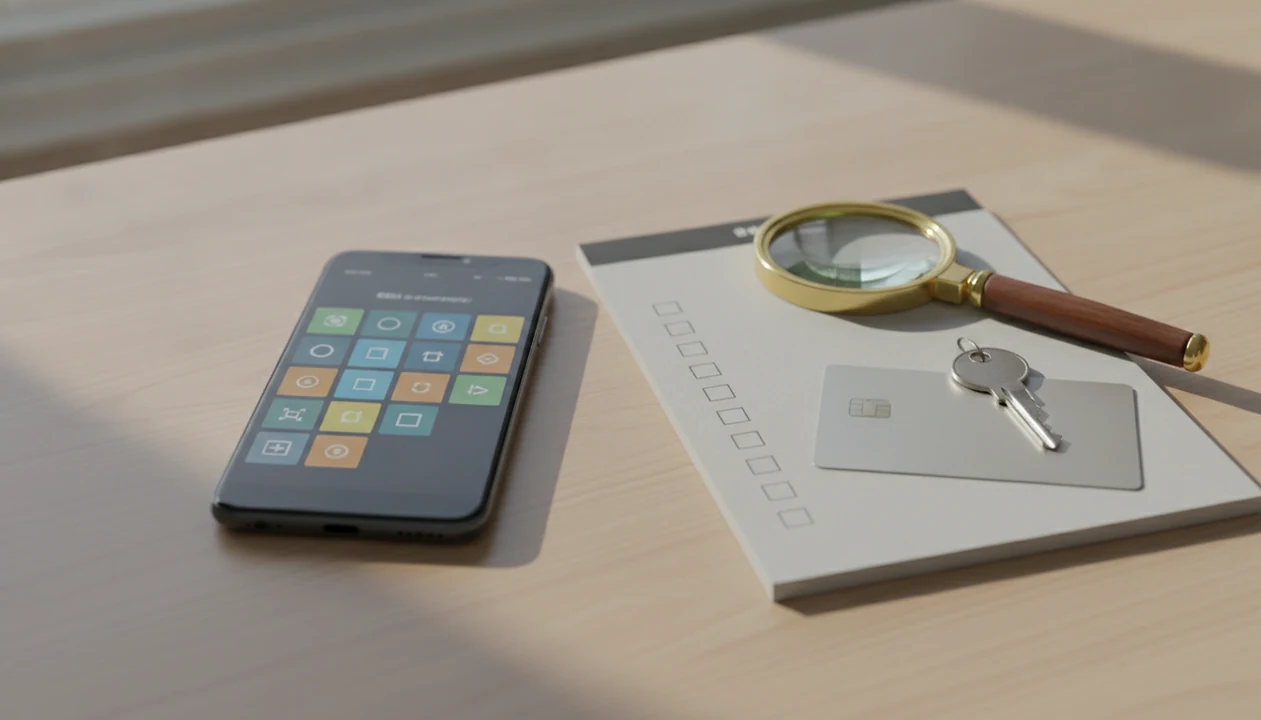
A mobile apps guide helps everyday users compare, install, and manage phone or tablet apps without needing technical knowledge. The safest approach is to check the app’s purpose, developer, recent reviews, permissions, pricing, and update history before you download.
> Definition: A mobile app is software designed to run on a smartphone, tablet, smartwatch, or similar mobile device through platforms such as iOS, Android, or a mobile web browser.
TL;DR
- Mobile apps are central to daily internet use, but free apps may still cost you through ads, data collection, subscriptions, or in-app purchases.
- Before installing an app, check the developer, last update date, permissions, recent 1-star reviews, privacy details, and cancellation terms.
- The best app choice depends on your real use case: speed, offline access, privacy, price, notifications, and whether the app actually solves a daily problem.
Mobile Apps Guide Definition for Everyday Users
A mobile apps guide is a plain-language buying and safety reference for choosing, installing, comparing, and managing apps on phones and tablets. It helps consumers read app store pages, understand permission prompts, compare prices, and avoid downloads that waste storage, money, or attention.
This is not mobile app development advice. It is also not enterprise IT policy. The focus is everyday use: music practice, shopping, banking, creativity, learning, travel, productivity, and small tools that live on your home screen.
The receipt often tells a different story: a free download becomes a $6.99 trial, a storage hog, or an app that asks for contacts before it does anything useful.
A good consumer guide gives clear checks for digital tools, mobile apps, web software, and buying decisions for everyday users, not developer jargon or vendor sales copy. For most people, a repeatable checklist is easier than trusting one star rating because app listings change after launch.
Mobile App Use at a Glance
Mobile apps matter because most phone tasks now happen inside apps, not browsers; Pew Research reported that, in early 2024, 90% of Americans owned a smartphone (Pew Research Center).
| Question | Quick check |
|---|---|
| What apps do | Run focused tools for messaging, banking, music, shopping, learning, travel, photos, and work |
| Where to get them | Apple App Store, Google Play, manufacturer stores, or trusted mobile web pages |
| What to check first | Developer, last update, recent bad reviews, permissions, pricing, support, and privacy details |
| Biggest risks | Tracking, surprise subscriptions, weak support, manipulative trials, storage drain, and changed features |
Official app stores reduce risk, but they do not eliminate it. We have seen search results littered with sponsored labels, where the first app looked official until the developer name was checked. Skimmers should start with the developer, price, and permission list before anything else.
How to Use This Mobile Apps Guide
Use this guide as a decision filter before an app earns a place on your phone. Start with the job you need done, then judge whether the download is safer, faster, or more useful than a browser tab.
- Define the task first. Decide whether you need the app for a daily habit, a trusted account, offline access, creative work, or a one-time errand. A vague “maybe useful” download usually becomes clutter.
- Compare the format. Weigh native, web, and hybrid options before installing. A native app may be best for speed or microphone access, while a mobile website may be enough for a rare purchase.
- Inspect the listing. Check the developer name, permissions, pricing, recent negative reviews, support path, and update history before tapping install.
- Require a clear payoff. Install only when the app justifies the storage, data access, notifications, or attention it asks for.
- Review after setup. Revisit subscriptions, permission toggles, notification settings, and export options once the app is working, not six months later when the renewal email lands.
Five Mobile Apps Facts to Know Before Downloading
These five facts cover the checks that matter before an app gets access to your phone.
- Mobile apps are software for mobile devices. They are built for phones, tablets, watches, and similar devices, usually through iOS, Android, or a mobile browser.
- Native, web, and hybrid apps behave differently. Native apps often feel faster, web apps save storage, and hybrid apps sit between them with tradeoffs in speed and offline use.
- Ratings are not full safety signals. App store badges and star scores can miss privacy issues, old complaints, or recent subscription changes.
- Permissions and pricing need review first. Location, contacts, photos, subscriptions, and in-app purchases should be checked before installation.
- Apps can change later. Updates may add features, remove useful tools, change privacy practices, or introduce a new subscription floor.
A Friday afternoon changelog line that says “bug fixes” can still hide a new account requirement.
How Mobile Apps Work on Phones and Tablets
Mobile apps run on an operating system such as iOS or Android, and they use device features through permissions. Camera, microphone, location, Bluetooth, contacts, photos, and notifications are not automatic rights. The operating system acts as the gatekeeper.
Apps may store data locally on the device, sync it to cloud servers, or do both. Local storage can make an app faster and useful offline. Cloud sync helps across devices, but it also means your data may leave the phone. Notification services let apps send reminders, alerts, and promotional nudges.
Native apps are built for one platform. Web apps run through a browser. Hybrid apps combine web code with an app-store wrapper. The ios vs android apps difference can also affect updates, subscriptions, and privacy labels.
Updates can fix bugs, add features, remove tools, or change monetization. That tiny update button deserves a quick look.
Mobile App Types: Native, Web, and Hybrid Apps
Users do not always need to know an app’s technical type, but the type can explain why it feels fast, works offline, or breaks when signal drops. A guitar tuner, banking app, shopping app, and browser-based converter may all behave differently for structural reasons.
| App type | Installation | Speed | Offline use | Device access | Updates | Reliability |
|---|---|---|---|---|---|---|
| Native app | Installed from an app store | Usually fast | Often good if designed for it | Strong access to camera, mic, sensors, Bluetooth | Through app store | Strong when maintained |
| Web app | Opened in a mobile browser | Depends on site and connection | Usually limited | More restricted | Updated by the website owner | Depends on browser and network |
| Hybrid app | Installed like an app, often built with web components | Mixed | Mixed | Good, but sometimes less smooth | App store plus server changes | Can vary by feature |
For a tuner or recorder, native often works better because timing and microphone access matter. For a one-time file converter, a browser tool may be enough. For deeper storage tradeoffs, compare phone storage app performance before installing five similar apps.
Mobile App Store Checklist for Safer Downloads
Use this 2-minute app store checklist before tapping install. Star ratings help, but they are insufficient because reviews can be outdated, biased, incentivized, or manipulated.
- Verify the developer name. Confirm it matches the company, bank, publisher, or known tool you expected.
- Check the last update date. A neglected app may have bugs, broken login, or stale privacy details.
- Read recent 1-star reviews. Look for repeated complaints about billing, crashes, missing exports, or account lockouts.
- Scan the permission list. A calendar tool asking for contacts deserves a pause.
- Open the privacy label. Separate required data from optional tracking when the store shows it.
- Compare the price and trial terms. Squint at the gray-on-white footnote under the monthly plan toggle.
- Find cancellation and support details. No support contact is a bad sign for paid tools.
Top-ranked or featured apps are not automatically safer or more private. Tools like Lunchbox Guitars, Wirecutter, and PCMag are useful when they show their checks, not just their picks.
Mobile App Permissions, Privacy, and In-App Purchases
Do mobile app permissions matter before installation? Yes, because permissions decide what an app can access, and free apps may still earn money through ads, tracking, premium tiers, subscriptions, or in-app purchases.
Common permissions include location, camera, microphone, contacts, photos, Bluetooth, and notifications. Location can reveal routines. Contacts can expose other people’s information. Photos and microphone access are sensitive even when the app has a valid reason. In 2022, about 46% of U.S. adults reported restricting or refusing app permissions because of privacy concerns, according to Pew Research (Pew Research).
The Android permission prompt that asks for contacts during setup is worth questioning when the feature only needs a calendar. Deny nonessential permissions first, then enable them later if a feature truly breaks. Review app permissions explained when a request feels mismatched.
Global consumer app spending reached about $129 billion in 2022, according to Statista (Statista). Check subscriptions monthly, turn off unnecessary notifications, and cancel trials before the renewal date.
Mobile Apps vs Mobile Websites for Daily Tasks
Apps are usually better for frequent, trusted, feature-heavy, or offline tasks. Mobile websites are often better for one-time purchases, low-trust brands, rarely used services, or avoiding another tracking surface.
| Task factor | Mobile app | Mobile website |
|---|---|---|
| Frequent use | Faster after setup | Fine, but less convenient |
| One-time task | Often unnecessary | Usually simpler |
| Storage | Uses device space | Uses little local storage |
| Privacy | May request more permissions | Fewer device permissions |
| Notifications | Strong, sometimes noisy | Limited or none |
| Offline use | Possible if designed well | Usually weak |
| Speed | Often faster for repeat tasks | Depends on browser and network |
For music practice, banking, saved travel tickets, language learning, or offline recipes, an app may earn its spot. For a single shopping order from an unfamiliar retailer, the website may be cleaner.
For daily tasks, install an app when the feature needs speed, offline access, or trusted account access; use the mobile website when the task is rare or the brand does not need device permissions. The offline vs online apps choice matters most when you travel, commute, or practice without stable signal.
Limitations
No mobile apps guide can remove every security, privacy, or spending risk. It can only reduce bad guesses and make tradeoffs visible.
- No checklist can completely eliminate security or privacy risk.
- App behavior can change after updates, including pricing and account requirements.
- Privacy policies are often long, vague, and hard for everyday users to interpret.
- App store ratings can be outdated, biased, incentivized, or manipulated.
- Official app stores reduce risk, but harmful or low-quality apps can still appear.
- Benefits such as creativity, focus, learning, and enjoyment are subjective.
- Free trials, cancellation rules, family plans, and feature locks can change quickly.
- Export promises may disappoint. We have opened a CSV export and found timestamps, not the notes a user expected to keep.
For subscription-heavy tools, compare the renewal price against real use. The mobile app subscriptions math often matters more than the launch discount.
FAQ
What is a mobile app?
A mobile app is software made for phones, tablets, smartwatches, or similar mobile devices. Most people install apps through official app stores or use lighter versions through a mobile browser.
Are free apps really free?
Free apps may still make money through ads, tracking, subscriptions, premium tiers, or in-app purchases. The price shown at download does not always reflect the long-term cost.
Which app permissions are risky?
Location, contacts, microphone, camera, photos, and background access deserve extra review. These permissions can expose sensitive routines, files, conversations, or other people’s information.
Can app store reviews be trusted?
App store reviews are useful signals, but they are not proof of safety or value. Reviews can be outdated, biased, incentivized, or manipulated.
Should I use an app or a mobile website?
Use an app for frequent, trusted, feature-heavy, or offline tasks. Use a mobile website for rare tasks, one-time purchases, low-trust brands, or when you want fewer device permissions.
How often should apps update?
Regular updates can signal active maintenance and bug fixes. Updates can also change features, pricing, privacy practices, or account requirements.
Do apps work without internet?
Offline access depends on the app type, saved data, and feature design. Some apps work partly offline, while others need a connection for login, sync, search, or media.
How do I delete app data?
Uninstalling an app may remove local files but may not delete cloud data. You may need to use account deletion, privacy settings, or the developer’s support process, and Lunchbox Guitars recommends checking that path before storing important data.